Features
Scene
Nuvo's own visual engine. Each song draws a scene to the beat, the words come in as they are sung, and the studio exports short clips.
Scene turns the lyrics view into a moving picture. The song draws itself to the beat, and each word lands as it is sung. A studio inside the player lets you build your own look and save any moment as a video for TikTok, Reels or Shorts.
Choose a look
Press F to open the lyrics view. The first time, the view splits in two: this song’s live scene on one half, its karaoke on the other. Click the one you want.
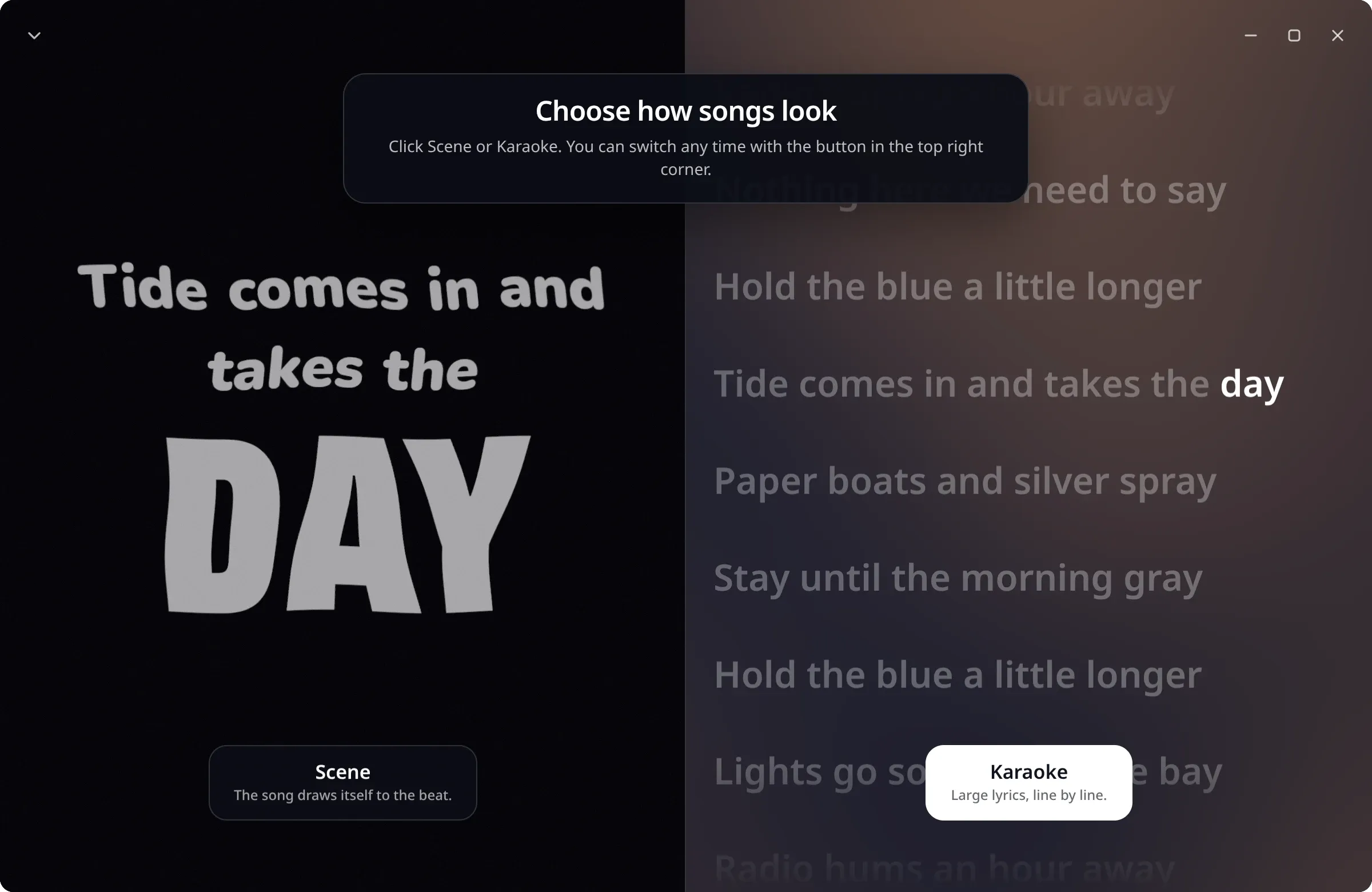
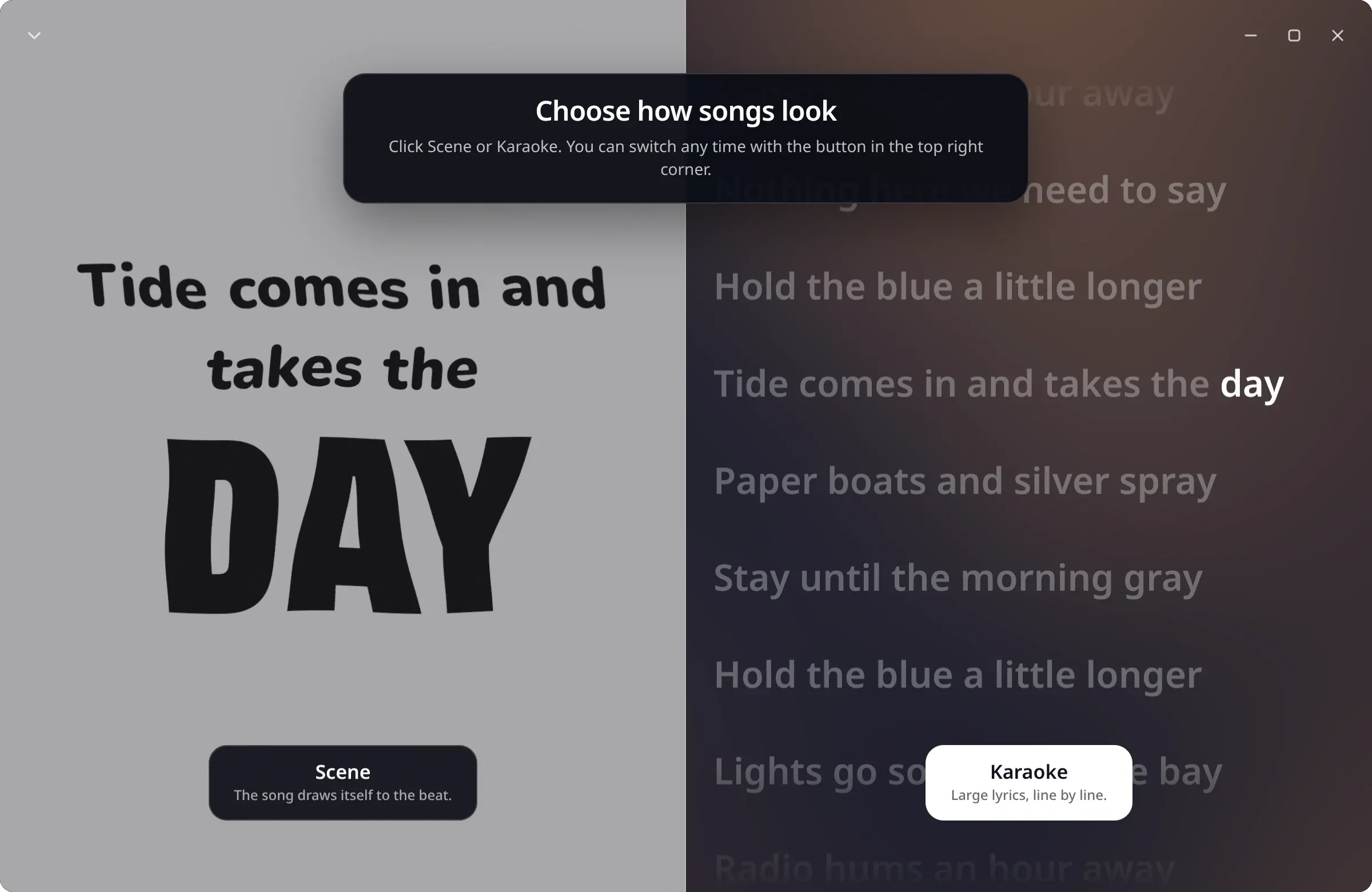
- Scene starts a short tour, from the pencil to Use as player. It plays a song with verified synced lyrics, and the song you were on comes back afterwards, at the same moment.
- Karaoke keeps the large lyrics, line by line, and points at the switch in the top right corner.
That switch flips between the scene and karaoke at any time. Settings, Playback has the same choice as Scene: turn it off to keep the plain karaoke view.
A song with no lyrics still gets its scene, with a note that the song has no lyrics yet.
Ready scenes
Twelve ready scenes come with Nuvo: Ice, Emblem, Signal, Glass, Film, Lens, Glitch, Chrome, Depth, Rain type, Snowfall and Night rain. Each takes its colours from the song’s cover.
The menu next to Use as player decides what you see while you listen:
- Random per song gives every song one of the ready scenes. It is the default.
- Every song keeps the scene you built for all songs.
The studio
Press the pencil in the lyrics view to open the studio. The song keeps playing.
- On the left are the ready scenes and the parts: Background, Effects, Centre and Text, plus Media for your own photo or video.
- In the middle is the live frame. Above it, Frame sets the shape: 9:16 for a phone, 1:1 square or 16:9 wide.
- On the right are the settings of the part you picked: brightness, motion, colours. The arrow resets a part.
- At the bottom is the timeline, with the waveform and live frames.
A scene is built from four parts:
| Part | Choices |
|---|---|
| Background | Cover glow, Night, Cover, White, Paper, Black, Two colours, Columns, Text video, Fogged glass, Dusk, Dusk in colour, or your own photo or video |
| Effects, up to three | Snow, Rain, Dust, Light streak, Petals, Film |
| Centre | Chrome emblem, Liquid, Disc, Orbit, Ink, Ridges |
| Text | Line, Whisper, Word by word, Kinetic, Collage, Lens, Chrome type, Glitch, Depth, Wiped glass, Smoke |
Nuvo keeps a scene readable. It allows one weather effect at a time, and when a pick would crowd the frame, it says why and what it changed, for example a lighter text style so the centre has room.
Add a photo or video puts your own picture behind the scene. The file stays on your computer.
Use as player makes the scene the one you see while you listen.
Keys in the studio
| Key | Action |
|---|---|
Space |
Play or pause |
Left, Right |
Seek 1 second, with Shift 5 seconds |
I |
Start the clip here |
O |
End the clip here |
Ctrl+Z |
Undo |
Ctrl+Shift+Z |
Redo |
Make a clip
On the timeline, drag the blue edges to pick the moment. A clip runs from 5 to 60 seconds. Scroll to move along the song, and hold Ctrl with the wheel to zoom. Show the whole song fits it all in view.
Press Export and choose:
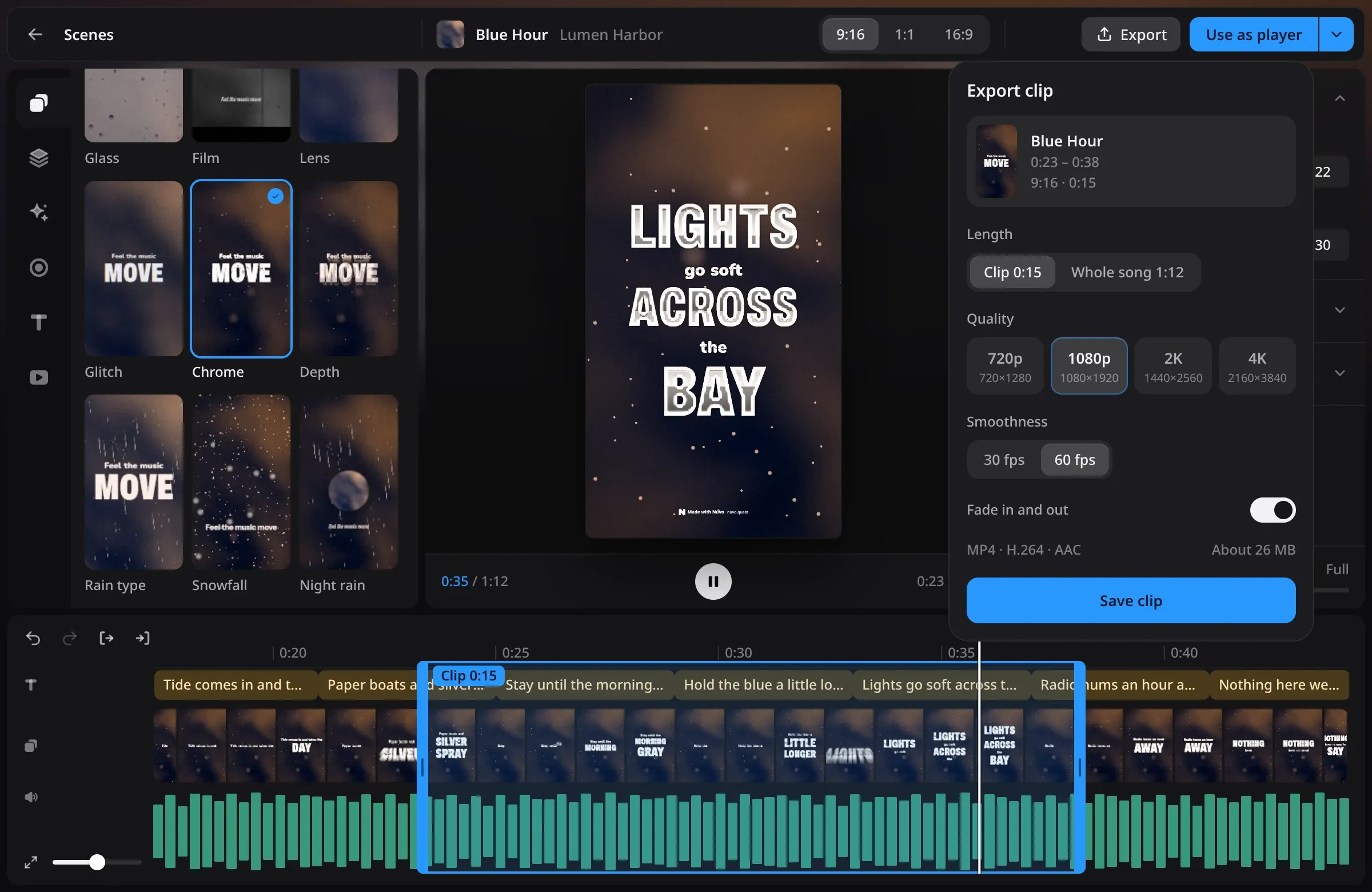
- Length: the clip you marked or the whole song.
- Quality: 720p, 1080p, 2K or 4K. Nuvo shows the expected file size for each.
- Smoothness: 30 or 60 fps.
- Fade in and out for picture and sound.
Save clip writes an MP4. The save dialog opens in your Videos folder. The picture and the sound come from the same engine as the player, so the clip looks like the preview and sounds like what you hear: your equalizer, reverb, speed and pitch go into it.
When the clip is ready, Nuvo offers three caption templates to copy, Song, Line and Short, and Post on TikTok, which opens TikTok’s upload page in your browser. Drop the saved file there.
The watermark
Every frame Nuvo exports carries a small mark at the bottom: the Nuvo sign, Made with Nuvo and nuvo.quest. Nuvo has no setting to turn it off. The live scene in the player has no mark.
The licence asks for a credit in a different place. Any version of Nuvo that contains the visual engine keeps the line “Visual engine by Denys Ziuziuk and contributors · nuvo.quest” in its legal notices, and Settings, About shows it. See licensing.
Performance
The scene draws in its own thread with its own clock, so a busy app never makes a lyric late. When the computer is under load, Nuvo lowers the scene’s resolution to keep the motion smooth. While the song is paused, the scene holds its frame.
If the view feels heavy on an older computer, switch back to karaoke with the button in the corner.